




Article
How can I connect my phone to my dermatoscope?
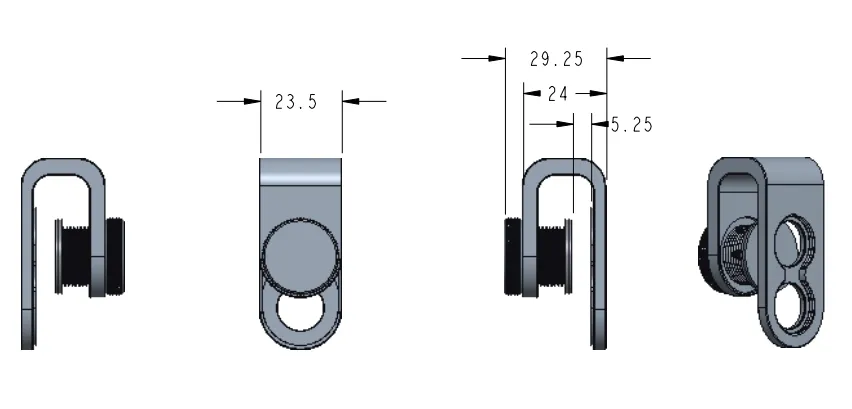
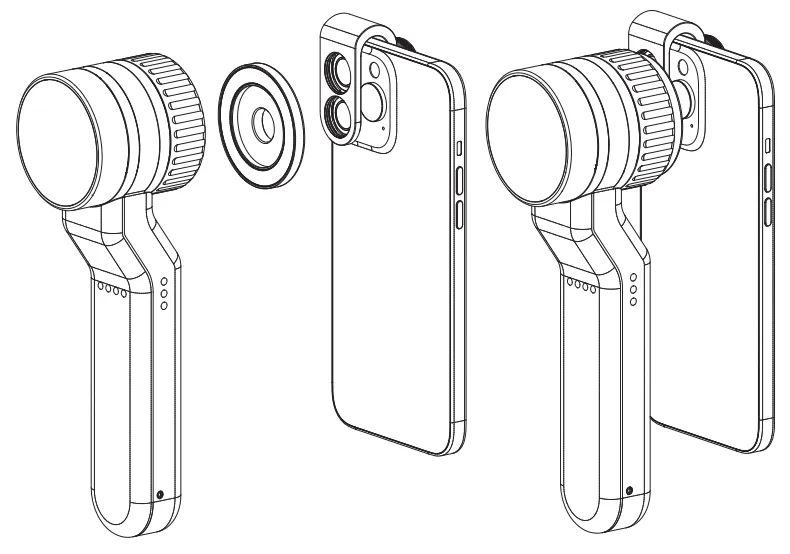
There’s universal phone adapter for all our dermoscopes. Please check the installation procedure bellow or watch operation guide. Smartphone Connector (1) Place phone adapter screw in the center of smartphone’s main camera.(2) Screw magnet attachment on phone adapter.(3) Put dermoscope’s back ring and magnet attachment together Take The Best Images You need to adjust the…
There’s universal phone adapter for all our dermoscopes. Please check the installation procedure bellow or watch operation guide.
Smartphone Connector
(1) Place phone adapter screw in the center of smartphone’s main camera.
(2) Screw magnet attachment on phone adapter.
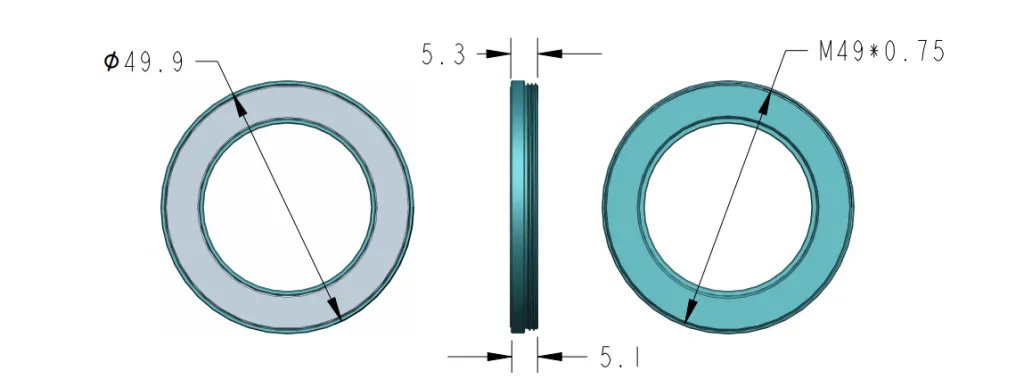
(3) Put dermoscope’s back ring and magnet attachment together
Take The Best Images
You need to adjust the focus ring after the dermoscpe connected on smartphone to get the best images.
Dermatoscope for iPhone: The Complete Guide to Professional Clinical Photography
The integration of high-resolution smartphone technology with precision optics has revolutionized teledermatology. Utilizing a dermatoscope iphone setup allows clinicians to capture, document, and share 4K clinical images instantly. However, achieving medical-grade results requires more than a simple physical connection. This guide explores the technical nuances of connecting IBOOLO dermatoscopes to the iPhone ecosystem and optimizing your workflow for diagnostic clarity.
The Multi-Lens Challenge: Aligning with the Right Camera
Modern iPhones, especially the Pro and Pro Max series, feature complex triple-camera systems. A common frustration when using a dermatoscope for iPhone is "lens jumping," where the phone automatically switches between lenses. To ensure a stable image:
- Identify the Primary Lens: Use the 1x (Wide) lens as your primary optical path. This lens typically offers the best sensor resolution for dermoscopy.
- Disable Macro Control: In your iPhone settings, enable the "Macro Control" toggle. This allows you to manually prevent the phone from switching to the ultra-wide lens when the dermatoscope is close to the skin.
- Locked Focus and Exposure: Once connected, long-press the screen to engage AE/AF Lock. This prevents the iPhone from hunting for focus during a live examination.
Step-by-Step Connection Procedure
To achieve a seamless dermatoscope iphone integration, follow this standardized protocol using IBOOLO precision adapters:
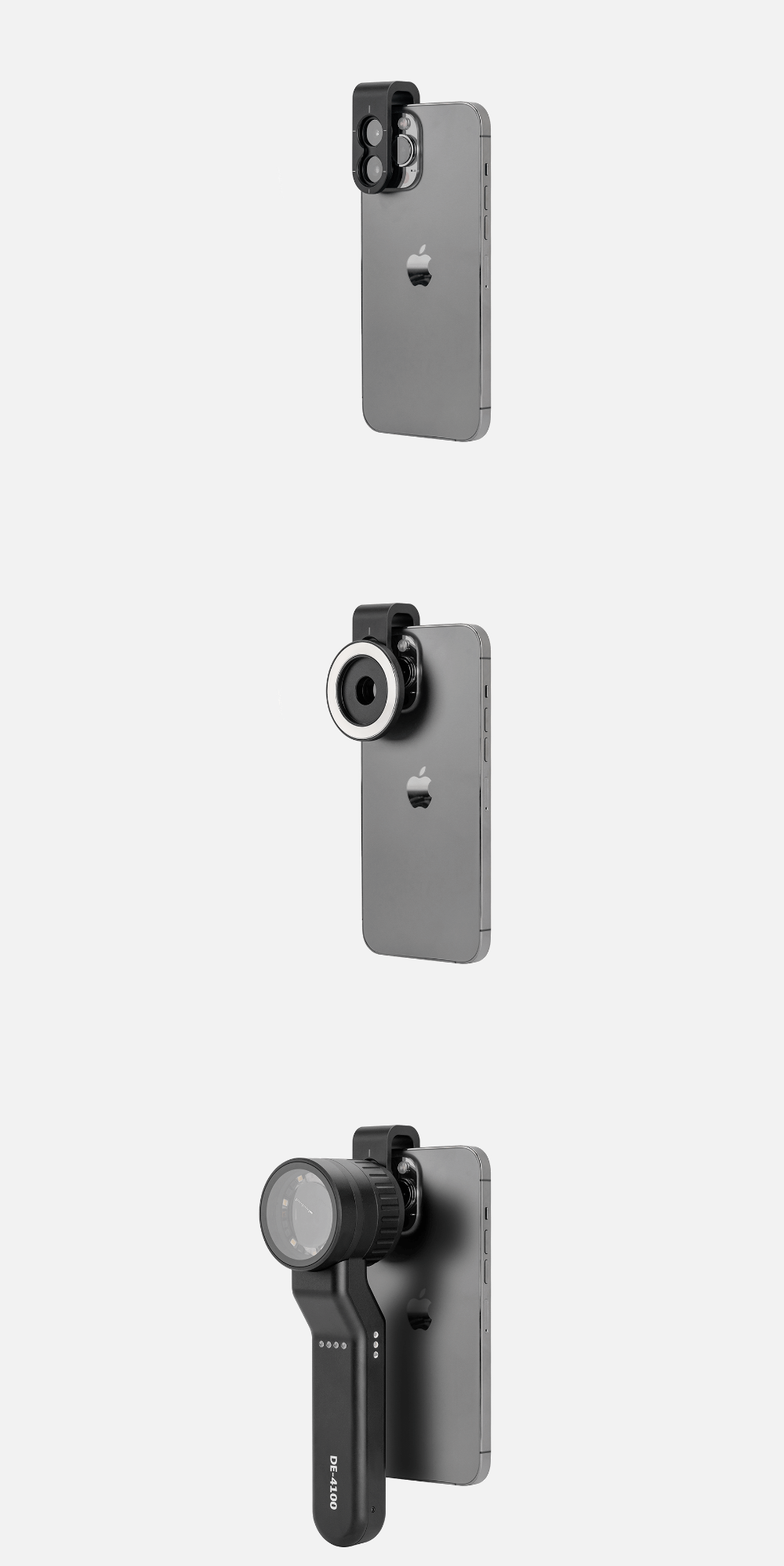
- Adapter Alignment: Place the IBOOLO universal phone clip or dedicated iPhone case over the primary 1x lens. Ensure the screw thread or magnetic mount is perfectly centered.
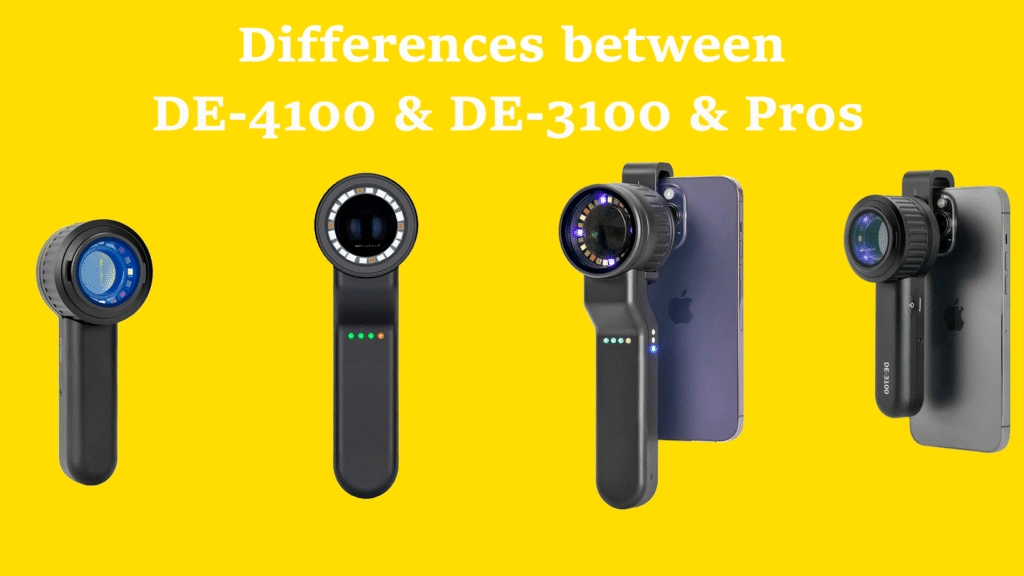
- Magnetic Attachment: Bring your IBOOLO DE-4100 or DE-3100 close to the mount. The high-grade magnets will pull the optics into precise alignment.
- Optical Calibration: Rotate the focus ring on the dermatoscope itself until the skin's micro-structures (such as the pigment network or vascular patterns) appear sharp on your iPhone screen.
iPhone Compatibility and Hardware Requirements
| Requirement | Recommended Specification | IBOOLO Support |
|---|---|---|
| iPhone Models | iPhone 12, 13, 14, 15, 16 (Pro & Standard). | Universal Clip & Dedicated Cases. |
| Adapter Type | Universal Magnetic or Threaded Mount. | 37mm Thread & Magnetic Ring. |
| Imaging Output | 4K Video / ProRAW Still Images. | Optimized for high-pixel sensors. |
Advanced Tips for Clinical Clarity
Capturing the perfect photo with your dermatoscope for iPhone involves mastering light and stability:
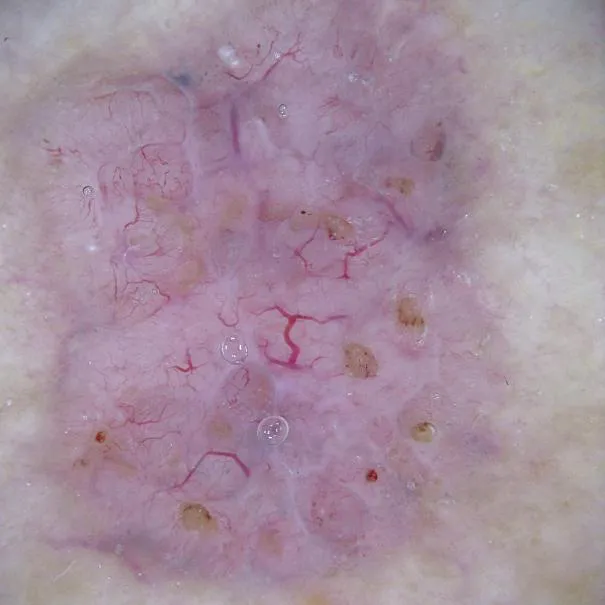
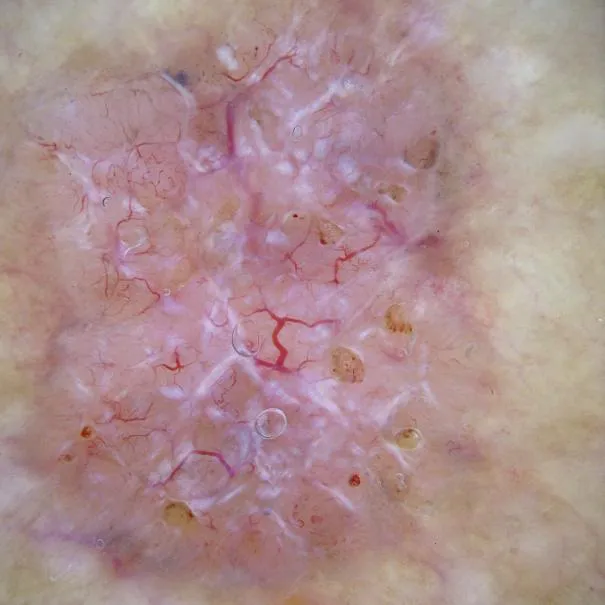
- Polarized vs. Non-Polarized: Use polarized mode to visualize deep vascular structures and "shiny white lines." Switch to non-polarized mode for surface features like scales or crusts.
- Stability is Key: Use both hands to steady the iPhone against the patient’s skin. The IBOOLO DE-4100’s ergonomic grip is designed to work in tandem with the phone's weight for maximum stability.
- Avoiding Vignetting: If a black circle appears around your image, utilize the iPhone's digital zoom (typically 1.2x to 1.5x) to crop out the edges of the lens barrel, creating a full-screen diagnostic view.
Troubleshooting Common iPhone Connectivity Issues
Why is my image blurry even when focused?
Check if your iPhone's "Night Mode" is active. Night mode can cause long exposure times and motion blur. Ensure you are using the high-intensity LED light from the IBOOLO dermatoscope to provide ample illumination.
My iPhone keeps switching lenses. How do I stop it?
This is common in the Pro models. Use a third-party camera app that allows for "manual lens selection," or use the native iOS Macro Control toggle to lock the active camera lens.
Can I use the flash on my iPhone?
No. When using a dermatoscope iphone setup, you should rely exclusively on the built-in LEDs of the dermatoscope. The phone's flash will be blocked by the adapter and will only cause unwanted glare.